 Feature explainer
How Sourceworks works
More than just a database.
A comprehensive sourcing and RFQ outreach workflow tool — our curated source database, AI-powered discovery, and your own private source list, all in one place.
Feature highlight — making Sourceworks yours
My Sources
Your private source list, inside Sourceworks, for combined outreach.
Customize Contact Info
Override Database contact defaults for your account.
Find a Source
By-name lookup for a specific source, without running a search.
What Sourceworks is
From lookup tool to sourcing management tool.
Sourceworks is the fastest way to find a metals or materials source — a curated Database paired with SCOUT, our AI-powered web discovery. It's also the place where you manage every source you touch and every RFQ you send — with that vetted catalog and AI discovery layered on top as the value-add that makes management effortless.
The workflow is straightforward: centralize your sources in one workbench, discover new ones when you need to reach further, fire effortless outreach to any combination of them, and manage every RFQ after you send.
A lookup tool
A searchable Database of metal & material sources, plus SCOUT for web discovery, with RFQ outreach as the endpoint.
Sourceworks
A unified sourcing management tool — your sources, the Sourceworks Database, and SCOUT together in My Sources, feeding into RFQ Management where every outreach is tracked from quote through PO.
Why this matters
01
One page for every source
Your uploaded contacts, the SW Database rows you save, and the SCOUT discoveries you keep — all together in My Sources, searchable, filterable, taggable, foldered, shareable across your team.
02
Discovery on tap, not the whole story
The vetted Database and SCOUT AI are still here, still fast, still growing. But they're what you reach for when you need to expand your list — not the only reason to open Sourceworks.
03
Track every RFQ after you send
Every outreach lands on your RFQ Management page. Log quotes, lead times, notes, PO numbers. Filter by status, sender, or date going back to when your account started. Recontact any group in one click.
What you'll find in this guide
A walkthrough of how Sourceworks manages your sourcing end-to-end — centralizing sources in My Sources, using the vetted Database and SCOUT AI to discover new ones, firing outreach across any combination of them, and tracking every RFQ from send through winning quote.
Feature walkthrough 01
My Sources
Your own list of sources, available inside Sourceworks and shared with your teammates on a Team plan. Add the sources you already know and trust, then use them in any RFQ outreach alongside Database results, SCOUT results, or on their own.
The problem we're solving
Every experienced buyer has a list of trusted sources built up over years. Without a place for it, that list lives somewhere outside your sourcing tool — a spreadsheet, a CRM, a notebook — and you end up doing one or both of the following:
Option A
For the same RFQ, use Sourceworks for new source discovery, and pull from your own spreadsheet or database for known ones. Extra steps, extra work.
Option B
Only use Sourceworks for obscure requests you couldn't find with your own network. While we add new sources all the time, we may not have specific sources you want to connect with, especially regional or niche ones.
My Sources eliminates the need to divide your efforts. Your own private source list lives inside Sourceworks, ready to be included in any RFQ alongside any new sources you pull from our Database or SCOUT.
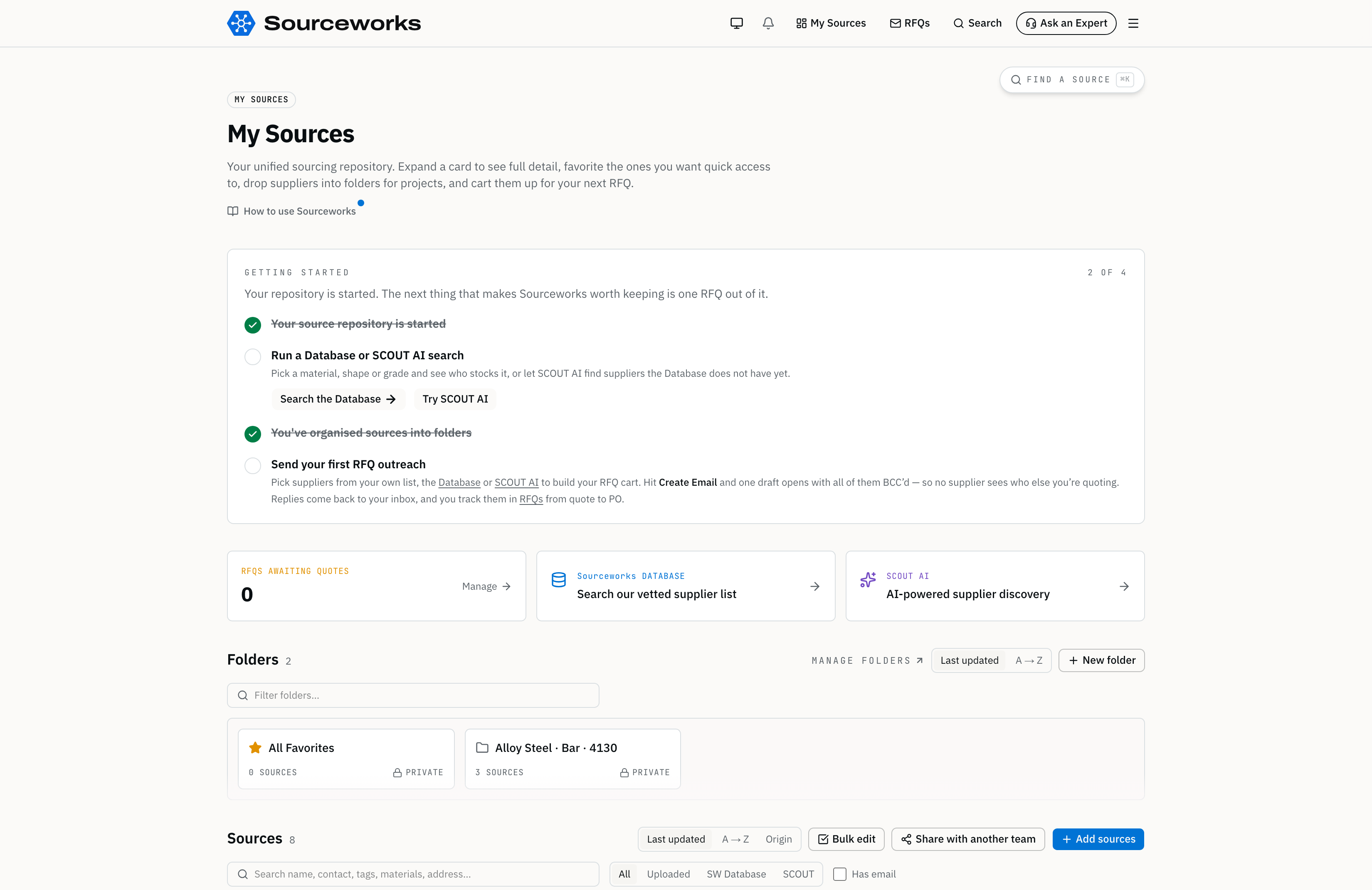
/account/source-pool page with several sources added — list view showing source cards, category chips, search / sort / filter controls.Your sources are protected
On an Individual plan, sources in your pool are visible only to you. On a Team plan the pool is shared: every teammate sees the same list and can add to it, and a folder stays yours until you choose to share it with the team. Never other customers, never the Sourceworks team.
My Sources · How to build it
Two ways to add sources.
Path A · One at a time
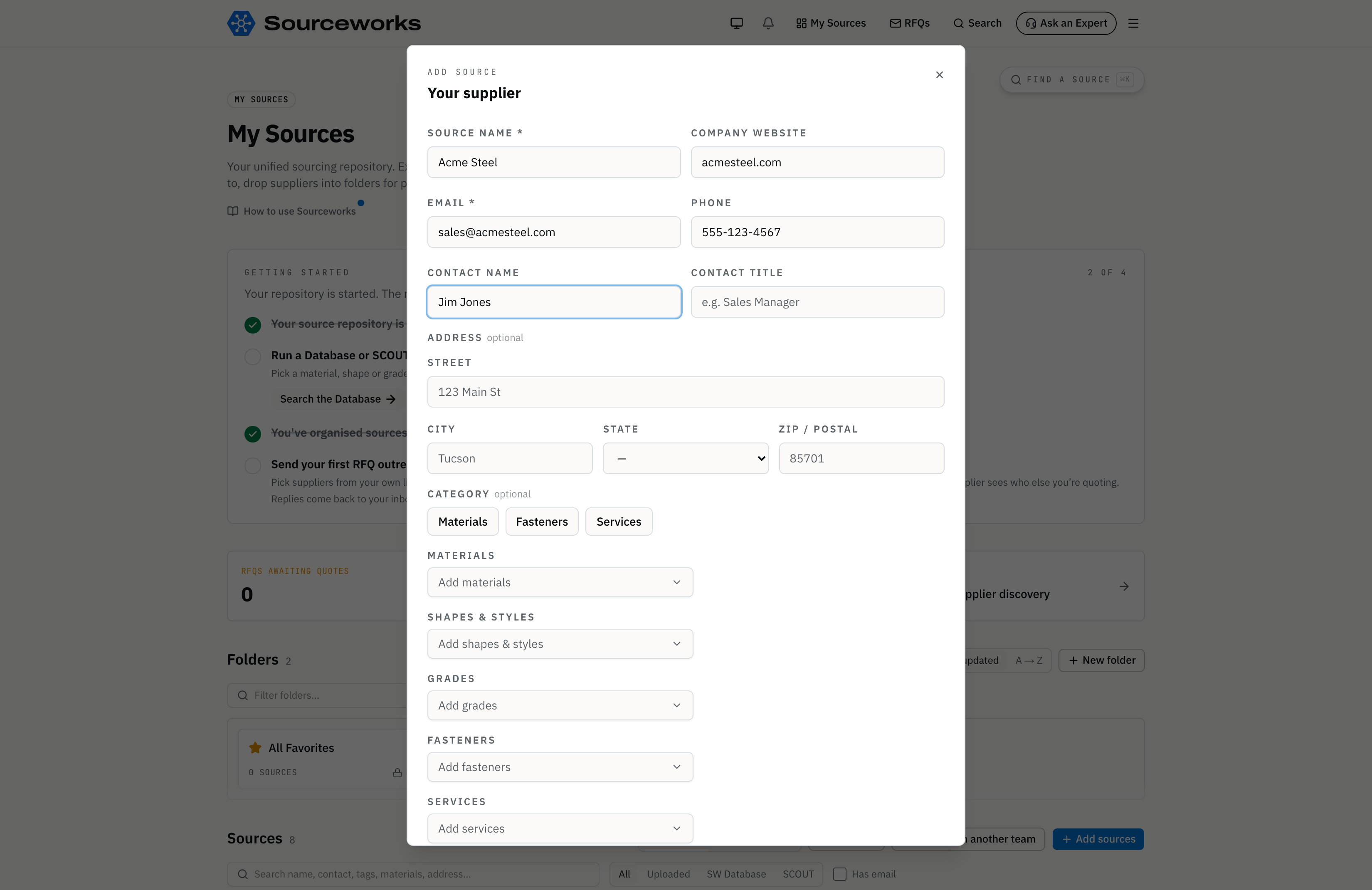
On the My Sources page, click + Add source. The Add Source modal supports the same level of detail Sourceworks maintains in the Database — Company Name and Email are required; everything else is optional. The level of detail and customization here is up to you.
- Identity — Source name, email, phone, contact name and title, website.
- Location — Street, City, State, Zip. State dropdown covers all 50 US states plus Canada.
- Capabilities — Categories (Materials / Fasteners / Services), plus the same Materials, Shapes, and Grades taxonomy used in the Database.
- Notes — Private free-text. Your notes about emailing reminders, MOQs, lead-time quirks, etc. — they live with the source.
Path B · Bulk upload from a spreadsheet
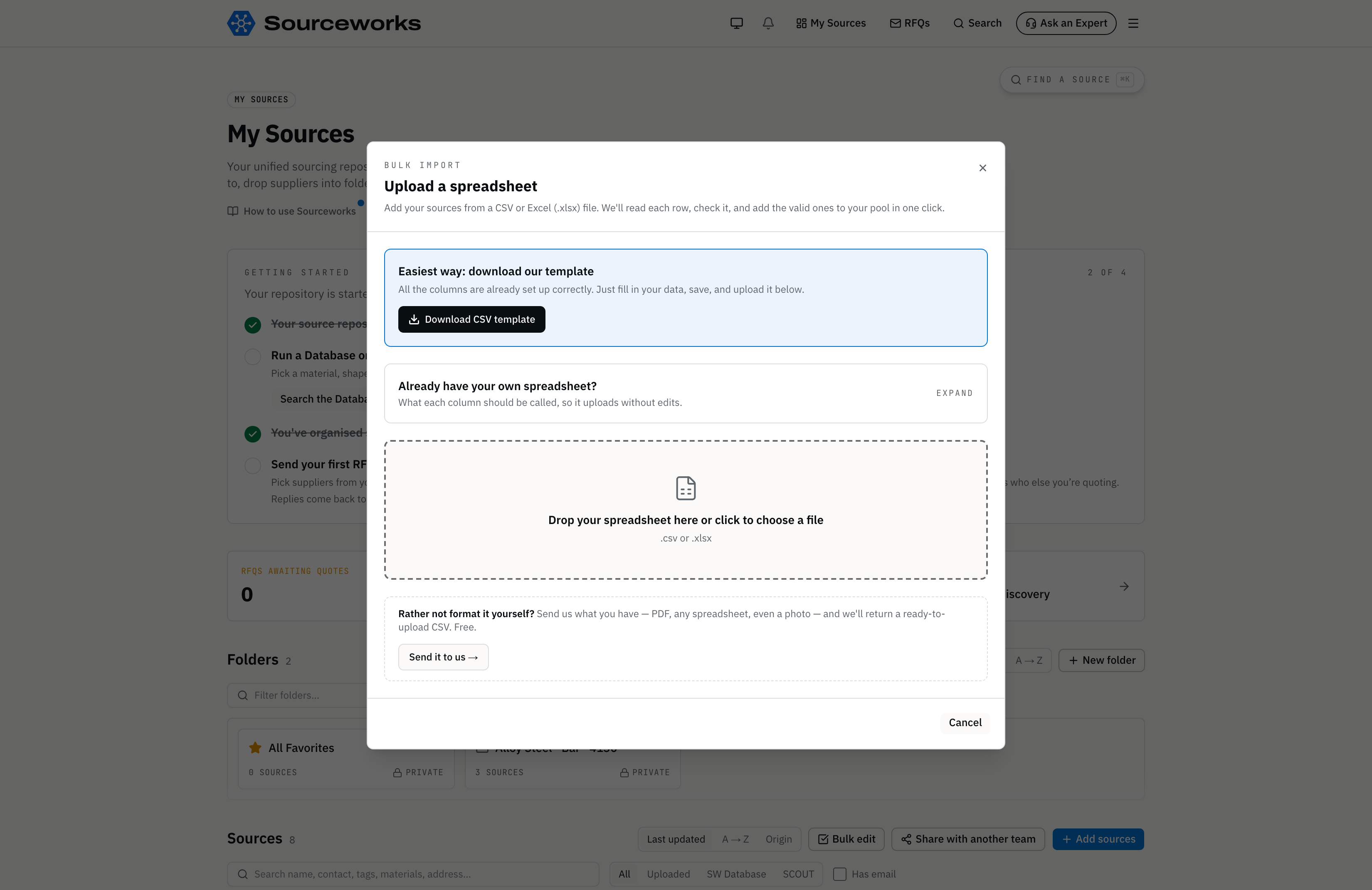
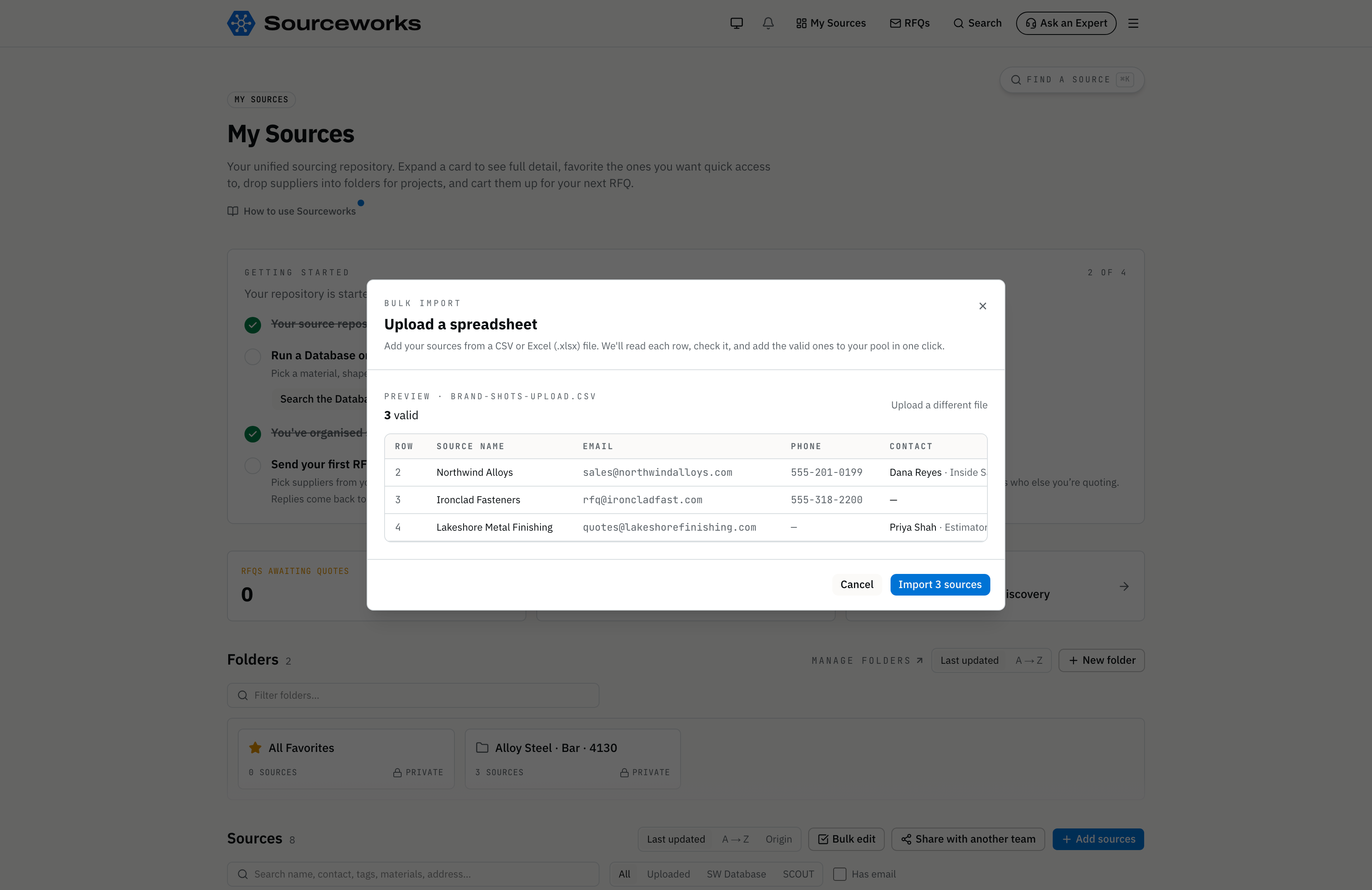
Got a list already? No need to add each source one-by-one. Drop a .csv or .xlsx file into the Upload modal. We provided you with a template you can use to make this easy, as well as instructions for formatting your spreadsheet if you want to use an existing one. Sourceworks auto-detects column headers, then shows a preview before anything is committed.
- Only Source name and Email are required in bulk upload. Rows missing either are flagged and skipped with a clear message.
- Duplicates are detected automatically by source name + email, so re-uploading the same spreadsheet won't create duplicates.
- Step-by-step instructions are built in to make upload a breeze.
My Sources · Use it
One pool. Two ways to send RFQs.
Alongside a Database or SCOUT search
This is the core workflow value. On any search results page (Database or SCOUT), click + My Sources in the toolbar above the search results. A picker opens with every source in your pool — check the ones you want included in the current outreach session.
- Run your Database or SCOUT search as usual. Pick your sources for outreach.
- Open the + My Sources picker and select the sources you want to add.
- Click Create Email. All selected sources — from Database or SCOUT + your pool — are BCC'd together as one RFQ email draft.
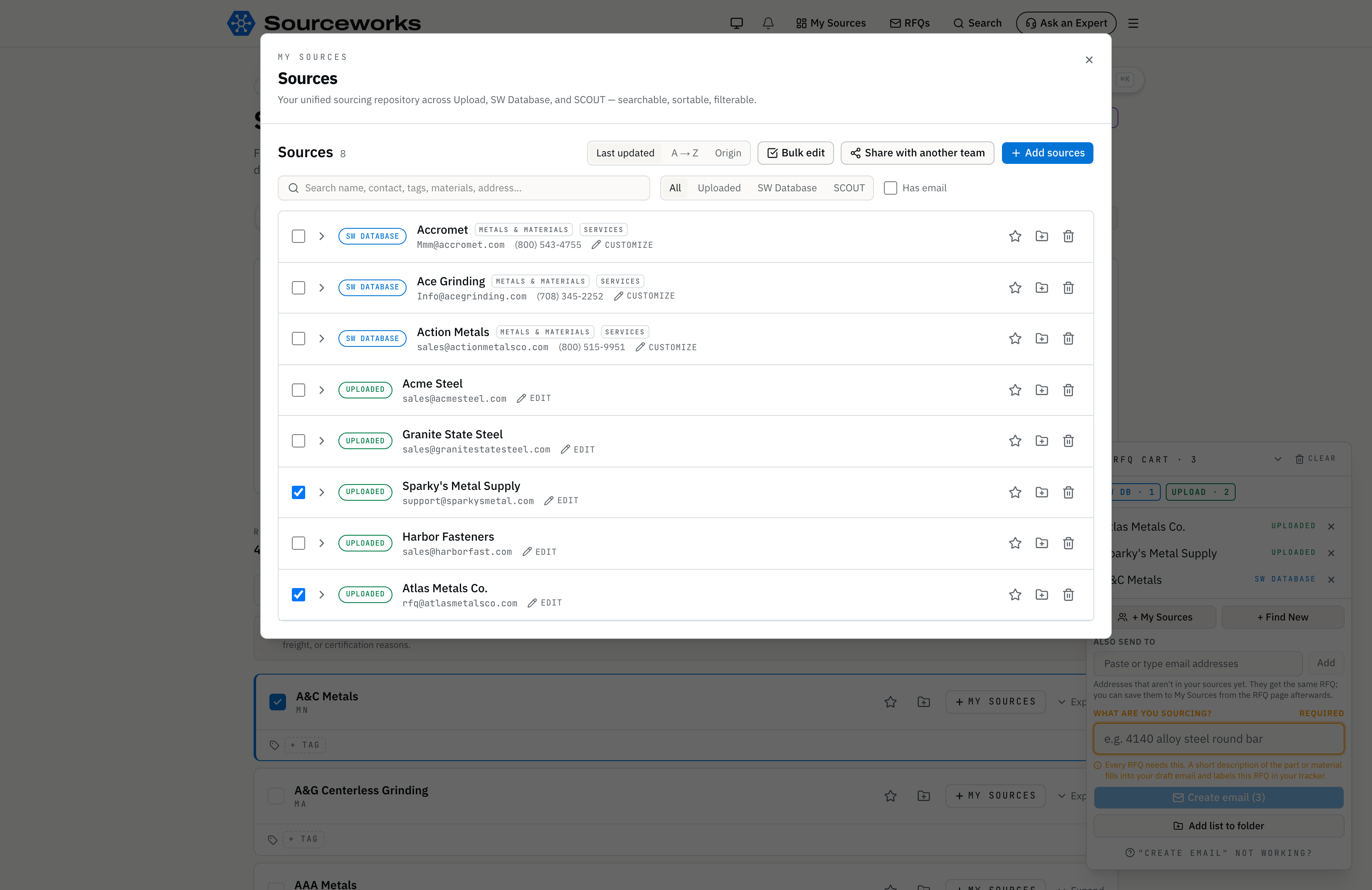
/search results page with the “+ My Sources” picker modal open, showing checkboxes next to pool sources.Or, against your pool alone
Sometimes you just want to RFQ a subset of your own list — no Database, no SCOUT. Each row on the My Sources page has a checkbox on the left. Select the sources, optionally type what you're sourcing in the bottom-right pop-up (e.g. “4140 alloy bar” — this will populate in your email draft), and click Create Email. Same email creation/outreach flow as Database or SCOUT.
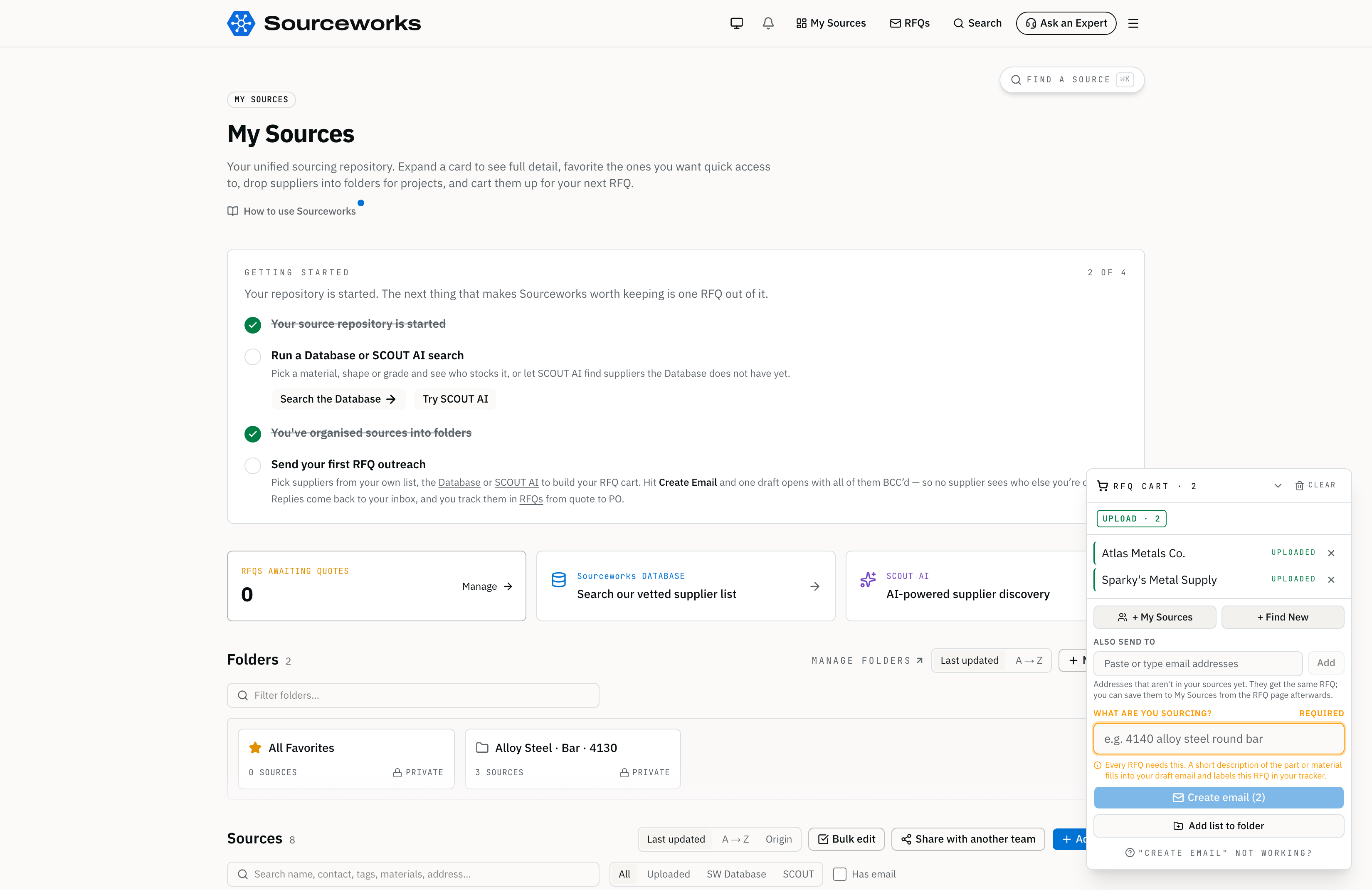
Managing the pool itself
Whether your pool has 5 sources or several hundred, the management page scales with you. Search by name / email / contact / state. Sort by recently updated, A–Z, or date added. Filter by category. Click any card to expand for full detail. Star any source into your All Favorites folder, or add it to any folder — your sources sit alongside Database and SCOUT entries in these folders with an identification badge (Database, SCOUT, My Source Pool) on each.
Feature walkthrough 02
Customize source contact info.
Override the Contact name, email, phone, and add private notes on any Database source — for your account only. Our Database default is preserved, and you can restore it at any time.
The scenarios we've heard from our users
A
Your direct contact changed
You've learned Jim is the right person for you, not the generic sales@ inbox. You want future RFQs to land with Jim.
B
Their preferred channel changed
A source shared their direct cell during a call. You want it on file so it shows up next time.
C
You've got a personal note
“MOQ is 200 lb.” “Best quotes after 3pm.” “Call before emailing.” Notes that used to live in a separate notebook.
How it works
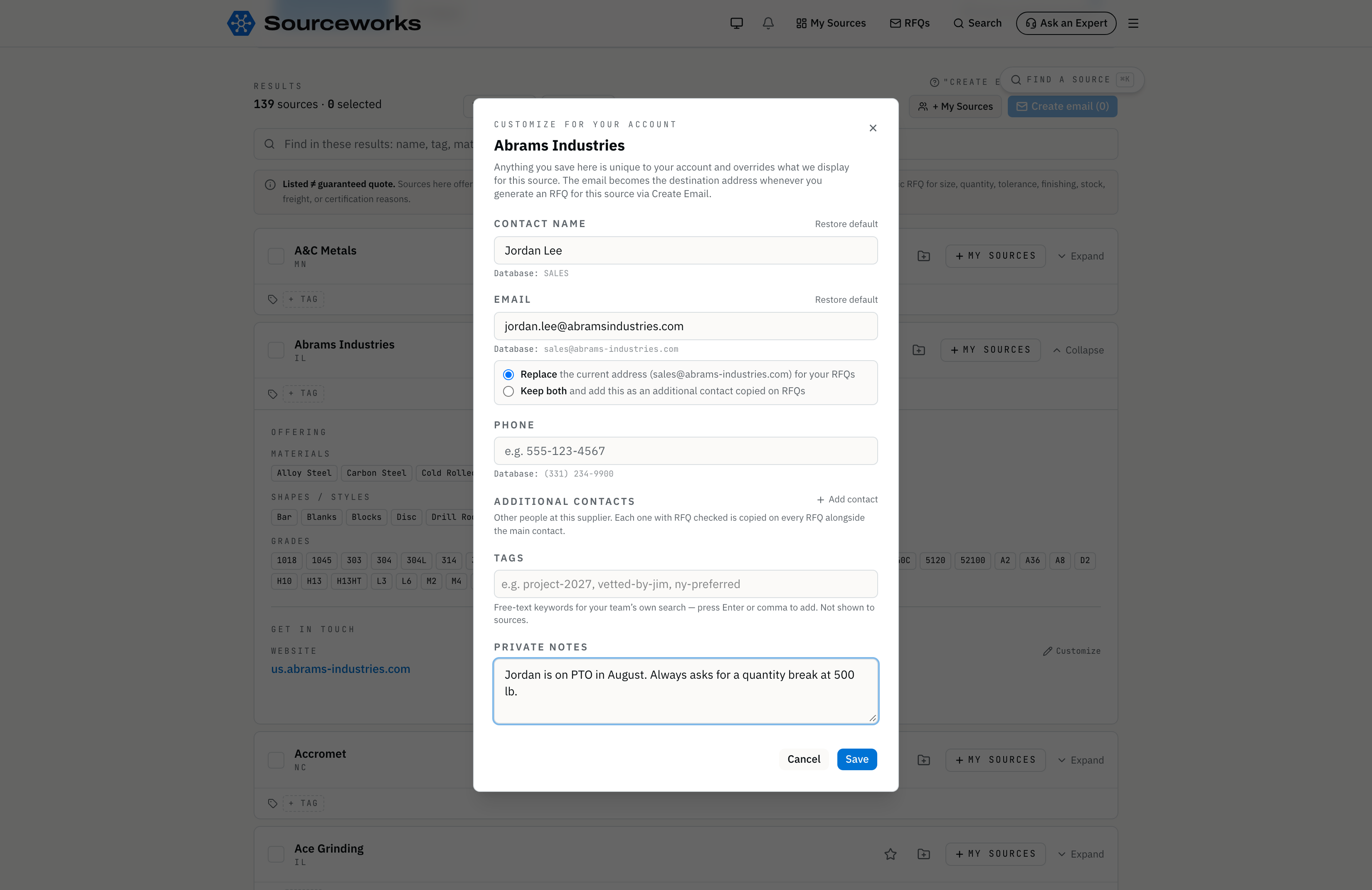
- On any Database source card in Database search results (doesn't apply to SCOUT), click the pencil icon “Customize” to the right of the contact information in the source card's expanded view.
- The Customize modal opens with four editable fields: Contact name, Email, Phone, and Private notes. Each shows the current Database default beneath it, so you always see what you're replacing.
- Click Save. The source card now displays an amber ✏ Customized chip — your version is what appears on the card, in your recipient list, and (if you changed the email) the new address is what gets BCC'd in your email draft.
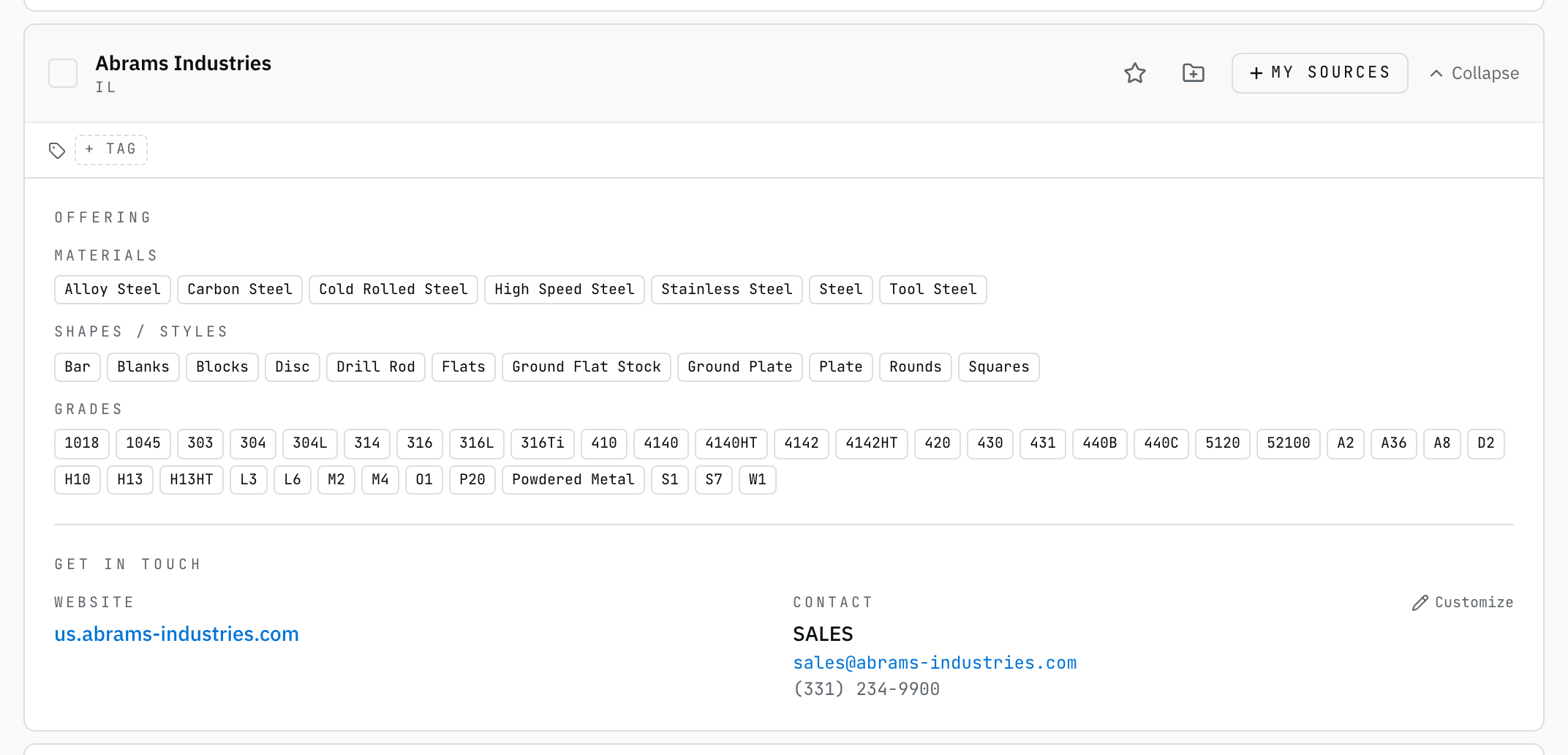
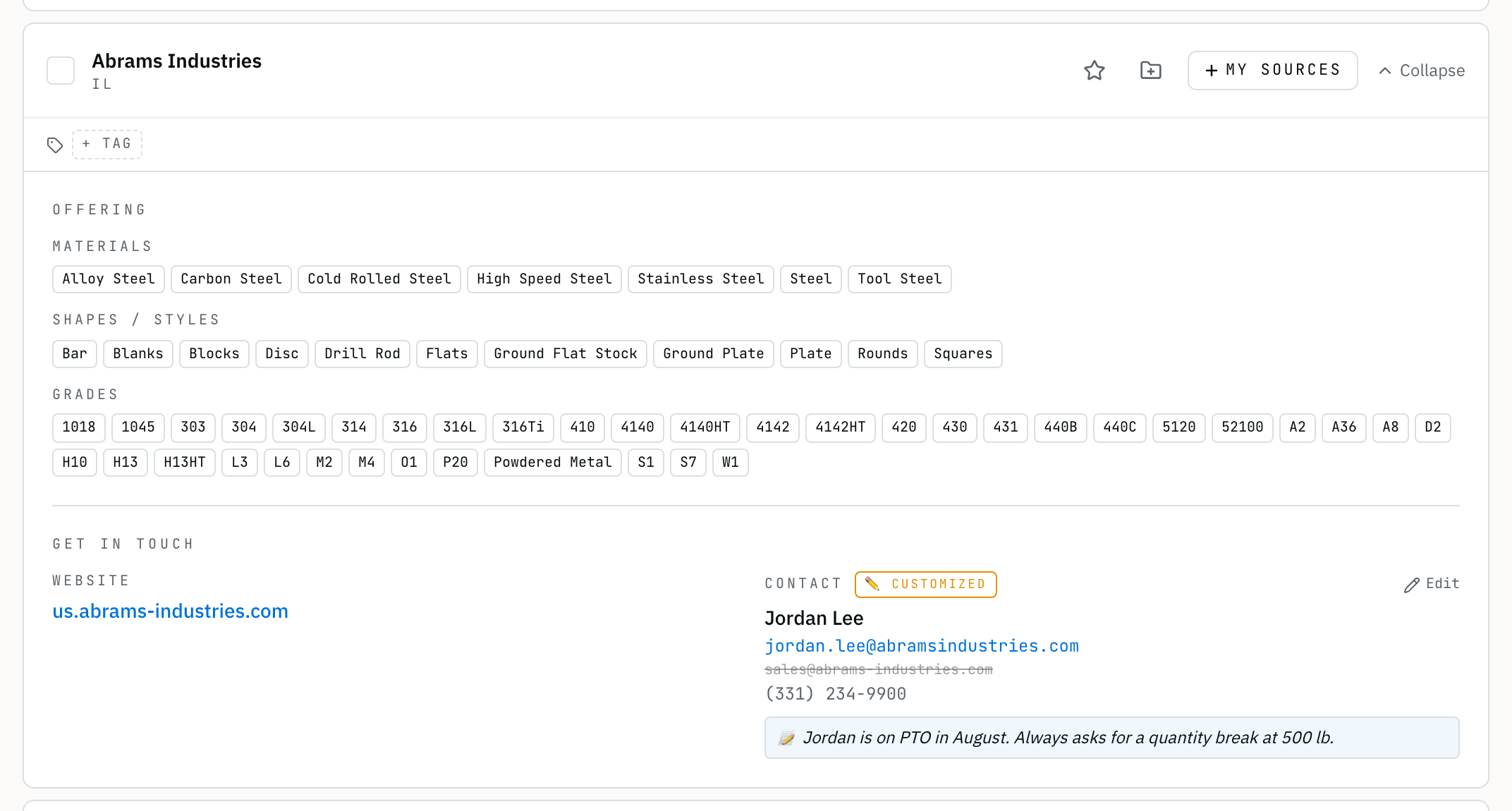
Customize · The details
Your customization is yours. Always.
What's preserved
- Your version wins. Whatever you type appears on the source card and is used in every RFQ for that source on your account.
- The Database default is never overwritten. Other users — and our Database itself — are untouched by your customization.
- Per-account privacy. Customizations are visible only to the user who made them. Not to other accounts.
When our Database changes after you've customized
If Sourceworks updates the Database email for a source after you've set your override — for example, we discover the old email bounces — the source card surfaces a passive “Database updated this — review your override” indicator. It tells you we have new information; it never auto-overwrites what you saved. Open the Customize modal and save again to clear it.
Restoring defaults
Two restore paths exist to return the source's contact information to our Database default, depending on what you want back:
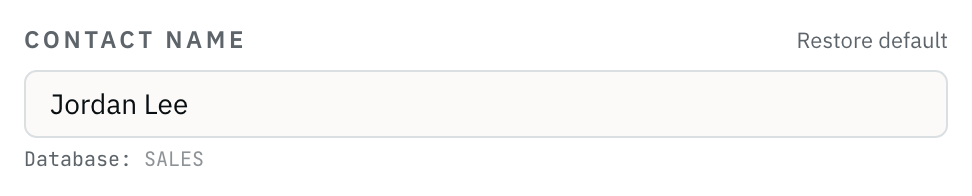

Either way
You're only ever clearing your own customization layer. The underlying Database record is never touched.
Feature walkthrough 03
Find a Source.
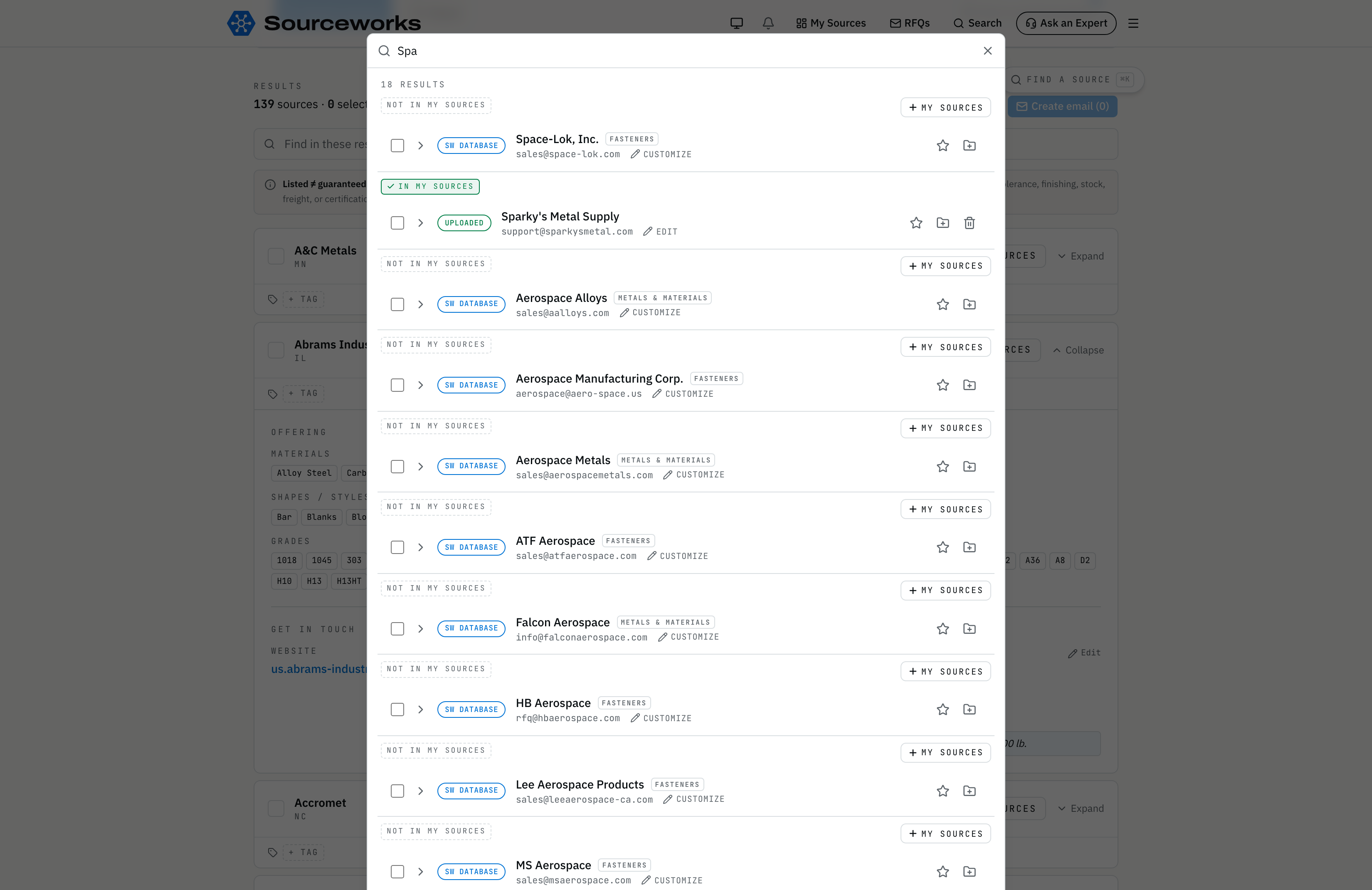
A by-name lookup of any source that searches our Database and your Source Pool at the same time. Built for the moment you need to update one specific source's contact information or add them to favorites/folders — not run a fresh search.
The scenario
You're mid-outreach. The rep at Acme Steel mentions, “Going forward, send quotes to jim@ — not the general info@ inbox.” You want to update Acme's contact info right now, before you forget. You don't want to re-run a full Database search with material, shape, and grade filters just to pull up one company.
That's what Find a Source is for.
How it works
- Click Find a source in the
/searchheader. - Type at least 3 letters of a company name.
- Inferred matches appear instantly.
- Click Customize (Database sources) or Manage (Pool sources) to act on the result without leaving your workflow.
What it doesn't do
- No filtering by material, shape, grade, or location — that's regular search or direct My Sources lookup.
- No full source card with capability chips — just enough to identify and edit/manage.
- No RFQ generation from inside the lookup itself — that's still the Database search or pool flow.
Doesn't count as a search
Find a Source is a lightweight recall affordance, not a discovery action. Looking up a source you already know runs no Database or SCOUT search, so it has no monthly allowance on any plan.
Organizing your sources
Favorites & Folders.
Two lightweight tools for keeping your sourcing organized as it grows — across the Database, SCOUT, and your own Source Pool.
Favorites
A one-click star on every source. Tap it, and the source is pinned to the top of your search results next time it appears — and added to your default All Favorites folder. Use it for the sources you reach out to most often: the names you want at the top of the list every time you run a related search.
How to use
- Click the star icon on any Database, SCOUT, or My Source Pool result.
- Favorited sources pin to the top of future results automatically.
- Browse your full list anytime at
/account/foldersunder All Favorites.
Folders
Named lists for the sourcing work you do across multiple searches and tools. Group Database, SCOUT, and pool sources into a single folder (e.g. Project Alpha · Q3 RFQ, Stainless sources, Backup sources) and run a fresh RFQ to the whole folder in one click. Folders survive your search history — useful when an active project spans weeks of sourcing.
How to use
- Click the folder-plus icon on any source to add it to one or more folders. Create a new folder from the same modal.
- Open a folder from the Folders button in the search header — or directly at
/account/folders. - Inside a folder, each entry shows a kind badge — DATABASE, SCOUT, or POOL — so you always know which surface the source came from.
- Generate a single RFQ to every source in the folder with one click.
Where they live together
All Favorites is a folder. It's just the default one — pinned to the top of your folder list and the one the star icon writes to. Once you create your own named folders, the same sources can sit in both: starred + filed, findable two ways.
After you send
RFQ Management.
Every RFQ you send lands on /rfqs as its own row you can expand and work — status per source, quotes, lead times, notes, POs, filters, Recontact, close/reopen. The place where sourcing actually gets managed.
Every outreach, tracked in one place
Every RFQ you fire is chunked into its own row on /rfqs. Expand a row to see every source you emailed on that batch — set a status (waiting, quoted, declined, won, no response), enter the quoted amount and lead time, drop notes as they come in, and record the PO number when you pick a winner. The batch's overall status pill (Open, Responses In, Won, Closed) is derived automatically from what its recipients say.
How to use
- Navigate to
/rfqsfrom the header any time. - Expand any batch to inline-edit status, quote, lead time, notes, and PO per source — every field auto-saves.
- Flag rows to come back to; dismiss the ones that aren't a fit so they drop out of the active list.
Filters + lifetime history
Quick filters at the top let you slice the list by status (Open, Responses In, Won, Closed), by sender (yours vs teammates on team plans), and by a date range that goes back to when your account started. Pull up an RFQ from a year ago and it's all still there — recipients, quotes, notes, everything.
How to use
- Tap a status pill or set From/To dates to filter — the count updates live.
- Search by source name to find any RFQ they were on across your history.
- Click a batch's criteria phrase (or a “+ Add criteria” nudge on unlabelled ones) to label the row for easier lookup later.
Recontact any group in one click
Every batch header has a Recontact button. Click it and every emailable recipient from that RFQ loads back into your cart — origins preserved, emails preserved. Add or drop a few sources, tweak the criteria, hit Create Email, and you've fired a new outreach without retyping anyone. It's the killer feature for recurring material needs: the same list of 8 sources you emailed last quarter, ready to go with two clicks.
Add manual recipients + save them to My Sources
Emailed a source off-platform — phone lead, direct email, a referral — and want to track them alongside the Sourceworks recipients? Use the “+ Add manual recipient” form under any expanded batch. Tick a checkbox and the same contact also lands in your My Sources for next time, deduped by email. Every RFQ becomes the single source of truth for the whole thread, on-platform or off.
Log an RFQ you sent outside Sourceworks
Sent one from your own inbox, by phone, or at a show? Click Log an RFQ on /rfqs, name what it was for, set the day it went out, and pick the recipients — from My Sources or the Database by name, or typed in if they aren't on file. It lands as a row like any other RFQ: quotes, lead times, notes, PO, Recontact. Every plan has it, and logged RFQs never count toward the Free plan's monthly outreach allowance, so your history is complete whichever way the RFQ went out.
Close and reopen threads manually
Sometimes you pick a winner externally, sometimes the requirement goes away, sometimes you're just done chasing. Close RFQ ends the thread manually regardless of what the recipient statuses say — reversible with Reopen. Manually-closed RFQs get a small lock icon on the status pill so you can see at a glance why they read Closed.
How it fits the workflow
My Sources centralizes your sources. Database + SCOUT help you discover new ones. The RFQ cart bundles any combination of them into one outreach. RFQ Management is where the loop closes — every send tracked from quote through PO, every past batch a one-click Recontact away.
When the search comes up empty
Material Expert Helpdesk.
Some needs don't fit a search box: a less common alloy, a spec with certification strings attached, complicated logistics, a finishing step nobody local seems to do. Ask our team instead.
A real person, not a form
The Helpdesk is staffed by the Sourceworks team, people with a combined 90+ years sourcing metals and materials. Describe what you need — material spec, certs, quantity, where it has to ship — attach a print or a quote if it helps, and a Material Expert works the request and comes back with hand-picked recommendations, usually within one to two business days.
How to use
- Open
/helpdeskfrom the header, or the Ask an Expert button on any search. - Write the request the way you'd brief a colleague, and attach files if you have them.
- The reply lands in the same thread, with a notification in the bell and an email. Follow up in the thread as many times as you need.
Where it sits in the workflow
Database search first, SCOUT when you need to reach beyond the vetted catalog, the Helpdesk when neither covers it. The recommendations that come back are sources: add them to My Sources, drop them in a folder, put them on the next RFQ.
Included on Team and Enterprise
The Material Expert Helpdesk comes with Team and Enterprise plans, alongside shared sources, shared folders and pooled SCOUT. Every thread you've opened stays on /helpdesk, so a recommendation from last year is a search away.
Reassurance
How it fits with the Database and SCOUT.
These features sit on top of the Database and SCOUT. Nothing here replaces them; they feed it.
The Database is the Database.
Our curated, shared source database is maintained continuously and is the fastest way to find a source you've never worked with before. The defaults you see are the same defaults every other user sees. Your customizations are a private layer on top.
SCOUT discovers.
AI-powered web discovery for sources outside the Database. The sources it surfaces can be selected alongside your pool in one RFQ.
What is metered, and what isn't.
Database searches, My Sources, Customize, Find a Source, folders and RFQ Management are unlimited on every plan, Free included. What is metered is SCOUT AI searches, a monthly allowance per plan, and on the Free plan the number of simultaneous RFQ outreaches (3 a month, each to any number of sources). Individual and Team plans send unlimited outreaches.
Folders, Favorites, History.
Folders accept pool entries alongside Database and SCOUT entries, with a kind badge to tell them apart, so one folder can hold a whole RFQ group whatever its sources came from.
A practical note for teams
If you're on a TEAM plan, each user maintains their own private My Sources workbench by default. But you can share pools across your team — the “Share with another team” action on /sources sends a snapshot the receiving team can accept, and shared folders sync updates as you add or remove entries. Customizations (per-source contact overrides and private notes) stay per-user so nobody overwrites your Jim-not-sales@ preference.
For sellers
Also sell? List your company.
Every source in the Database is a listing, and the buyers above are the ones searching it. If you supply metals, materials, fasteners or services, the other side of Sourceworks is yours too.
Free to list, free to stay listed
Already in the Database? Claim your listing when you sign up, at no cost, and take over keeping it current. Not listed yet? Build one from the same materials, shapes, grades and services buyers search with, add your location and the contacts that should receive RFQs, and an industry expert on our team reviews it before it goes live, usually within two business days. Listings never come down for non-payment.
What you get
- Found by buyers filtering on exactly what you stock or do.
- RFQs — material, quantity, criteria — delivered straight to the contacts you choose. You quote from your own inbox.
- No bidding platform, no middleman, no cut of the order.
Super Source
Super Sources manage their own Sourceworks listing and keep its offerings, locations and contacts accurate and complete. Every source in Sourceworks is vetted; this badge marks the ones that also maintain their listing themselves. It adds the badge in buyer search, instant publishing of your edits with no review wait, and additional listings for branches and divisions, at $49 a month per listing or $490 a year. Turn it on from your seller account whenever you want it. If it lapses, nothing comes down: the badge is removed and extra listings are maintained by Sourceworks until it resumes.
Same login, both sides
A seller account lives on the same login as a buyer account. Create or claim a listing at sourceworks.us/sell; your buyer plan is not affected.
What to do next
Getting started.
Three places to start, depending on where you are today.
You want to add your sources
Bring your sources in.
Go to My Sources and either add one at a time or, if you have a list, click Upload spreadsheet. Drop your existing source list (we've included formatting instructions, or use our template). The required columns are just Source name and Email; everything else is optional.
You want to edit Database sources
Update one contact.
Pick a Database source you've worked with — one where you know the right contact better than our Database default. Click the pencil icon, type the right email (and a note if it helps), save. From that moment, every RFQ to that source goes to the right place.
If you want Find a Source
Type a company name.
Open the Database search page, click Find a source, type the name of a source you want to find. Whichever side it's on — Database or your pool — you'll have it open in a click, ready to update.
One workflow.
The pattern we want you to feel comfortable with:
- Search the Database for what you need today,
- Or, run SCOUT if the Database doesn't have enough coverage.
- Add sources from your pool to the RFQ outreach.
- Send one RFQ. Everyone selected, BCC'd together, your template applied.
- Customize any contact info as you learn it along the way.
Help, when you need it
Every page has an inline help button. The “What is My Sources?” guide is a good quick reference on the My Sources page. For everything else, the Support link in the Sourceworks header is always one click away.
The promise
Sourceworks — more than just a database. A comprehensive sourcing and RFQ workflow tool.
One-page info sheets
Web
sourceworks.us
Support
support@sourceworks.us
In-app
Support button in header or footer
Sourceworks feature explainer · A Flat Stock Labs product